Launch Runtime
In this tutorial, we will create a Lua device, which requires something to run a Lua code. For simplicity, we take a virtual UCM, because it can be run - as a part of Enapter Gateway - on a personal computer. If you have already purchased a suitable computer for running Enapter Gateway or one of the Enapter ENP modules, you can proceed to writing the blueprint.
Here are the steps to run Enapter Gateway on a virtual machine (VM).
Prerequisites
- Oracle VirtualBox installed on your computer
- Enapter VMDK image file (you can use StarWind V2V Converter to converter from
.imgto.vmdkformat) - At least 60 GB of free disk space
- 4 GB of available RAM minimum
Setup
Create Virtual Machine
Step 1: Create a New Virtual Machine
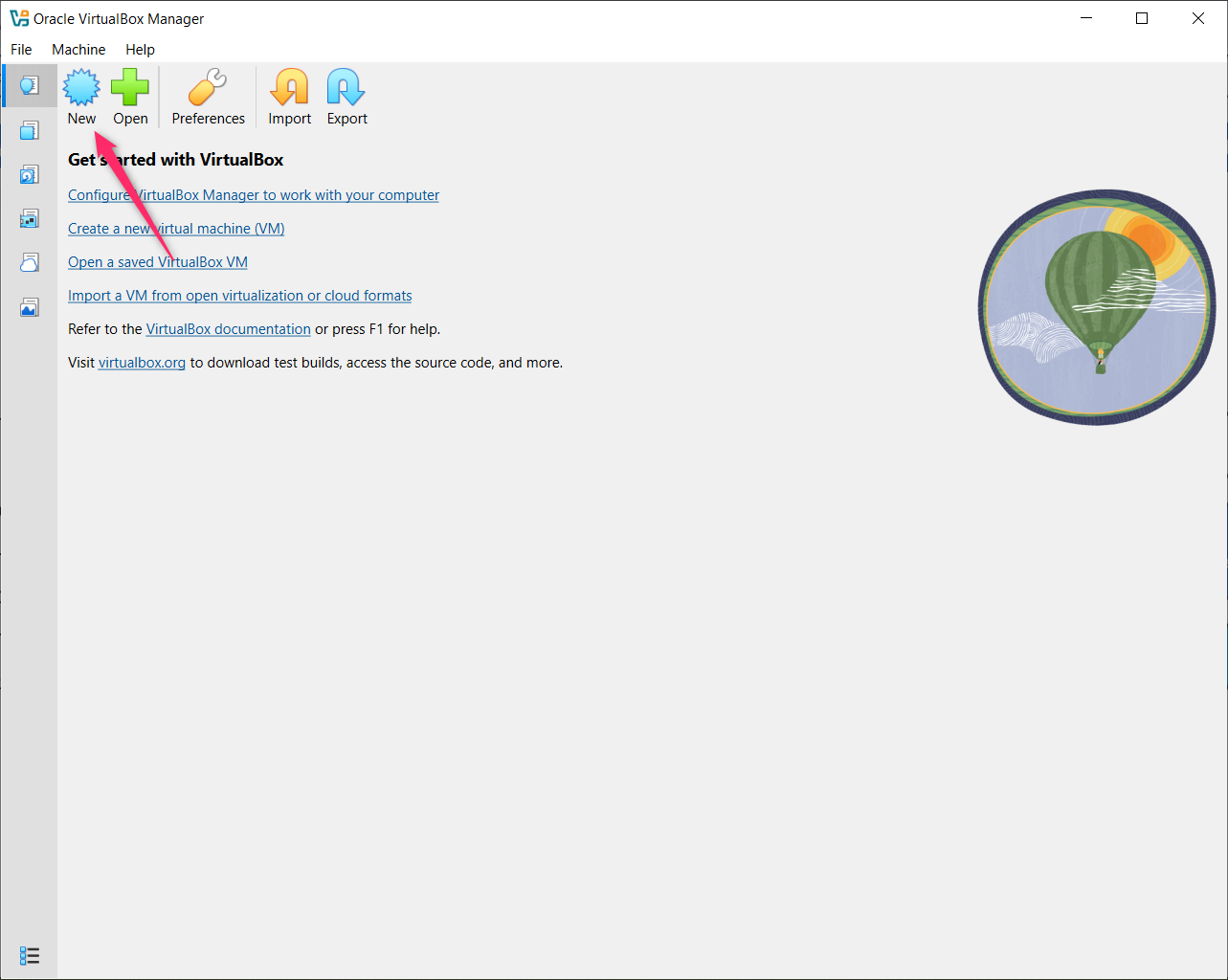
- Open Oracle VirtualBox Manager
- Click the "New" button in the toolbar
- This will start the virtual machine creation wizard
Step 2: Configure Virtual Machine Name and Operating System
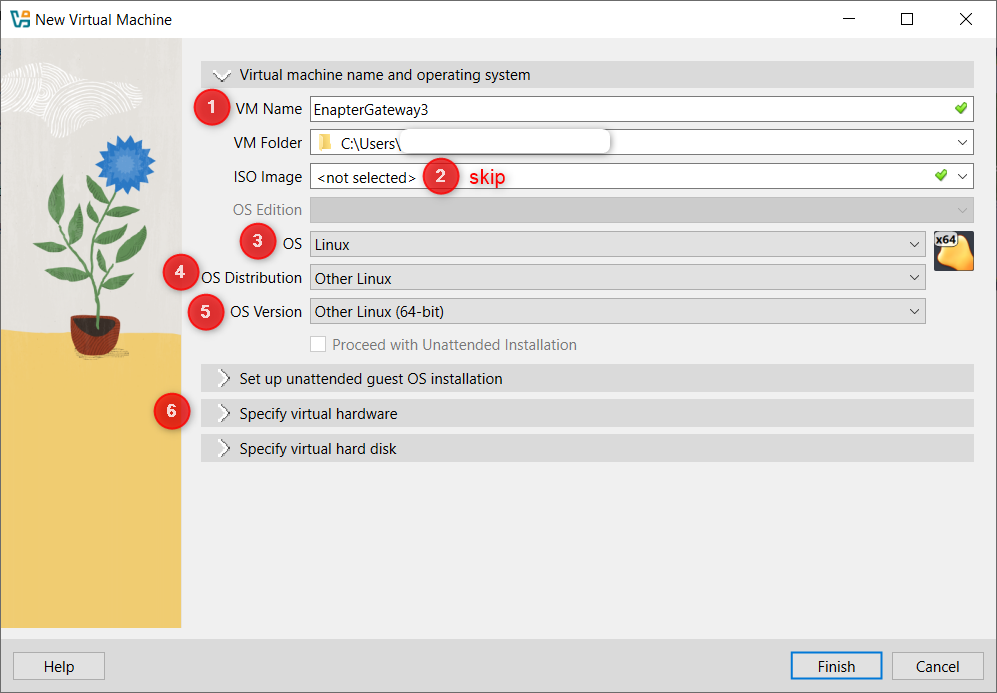
- Enter a descriptive name for your VM (e.g., "EnapterGateway")
- Set the folder path where the VM will be stored
- Important: Do NOT select an ISO image at this stage
- Configure the operating system settings:
- Type: Linux
- Subtype: Other Linux
- Version: Other Linux (64-bit)
- Click "Specify virtual hardware"
Step 3: Configure Hardware Resources
- Set the Base Memory to minimum 4096 MB (4GB)
- Set the number of processors to 2
- Critical Setting: Check the "Use EFI" box
- Click "Specify virtual hard disk"
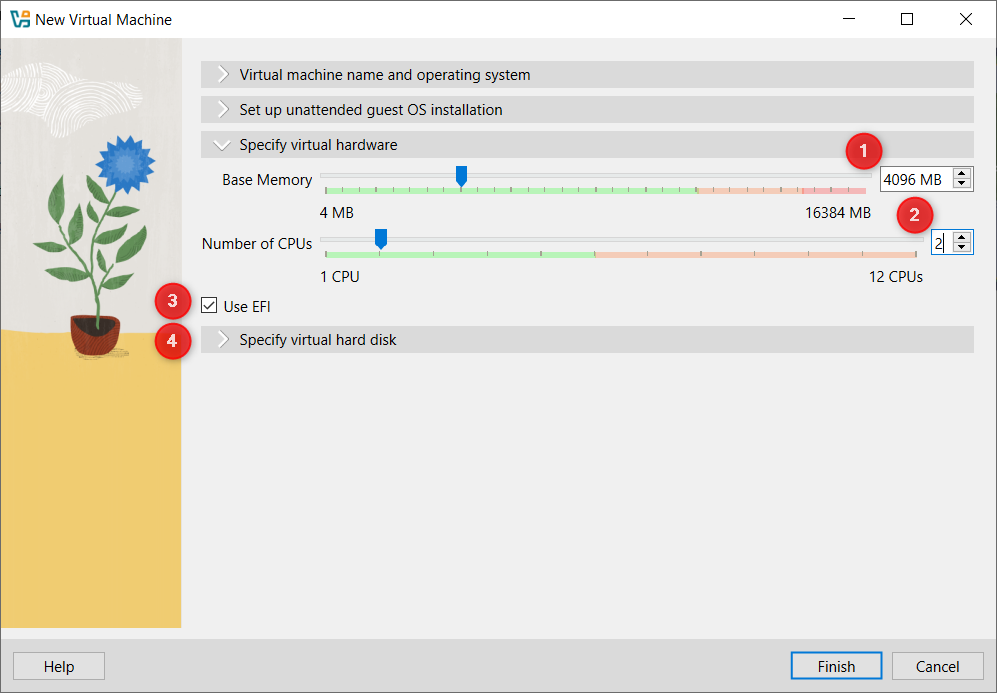
Step 4: Configure Virtual Hard Disk
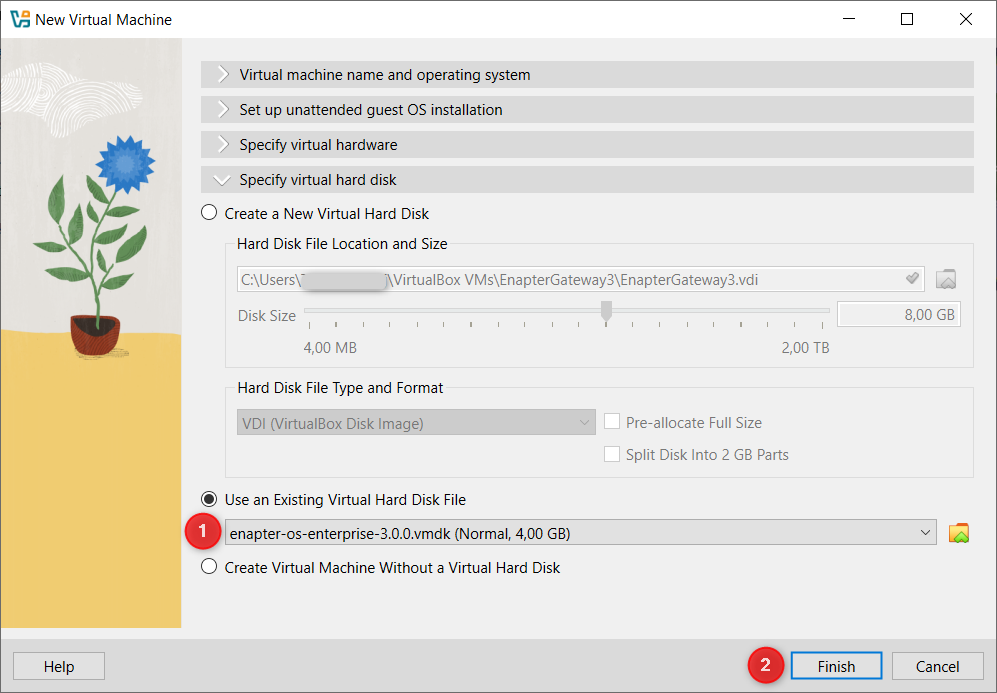
- Select "Use an Existing Virtual Hard Disk File"
- The dropdown will be empty initially, so click the folder icon to browse for your disk image
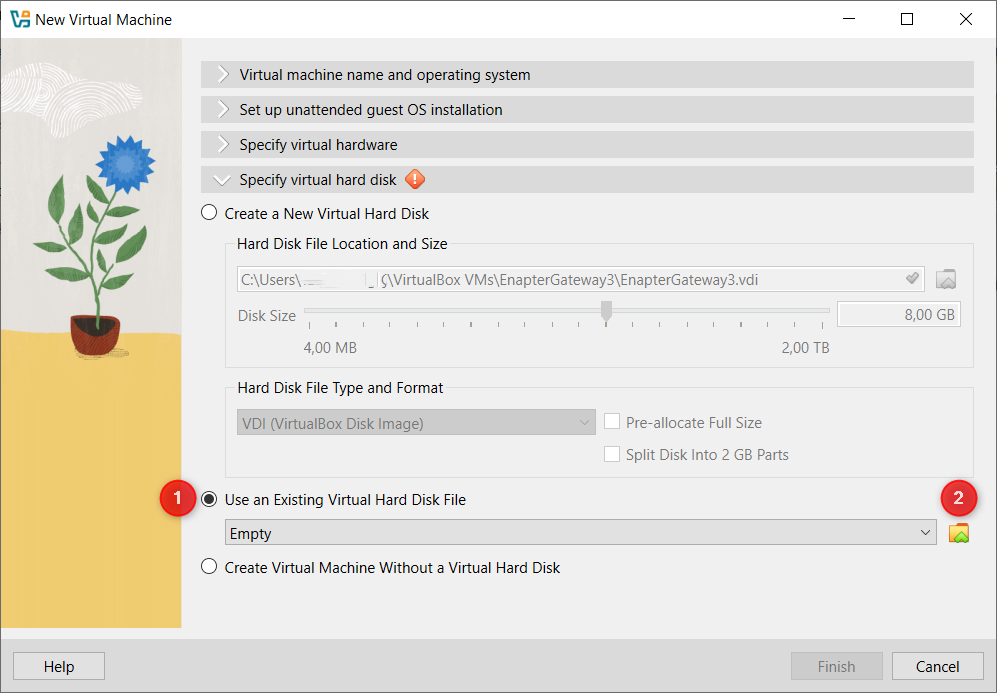
Step 5: Select the Enapter VMDK Image
- In the Hard Disk Selector dialog, click "Add" to browse for the Enapter system disk image
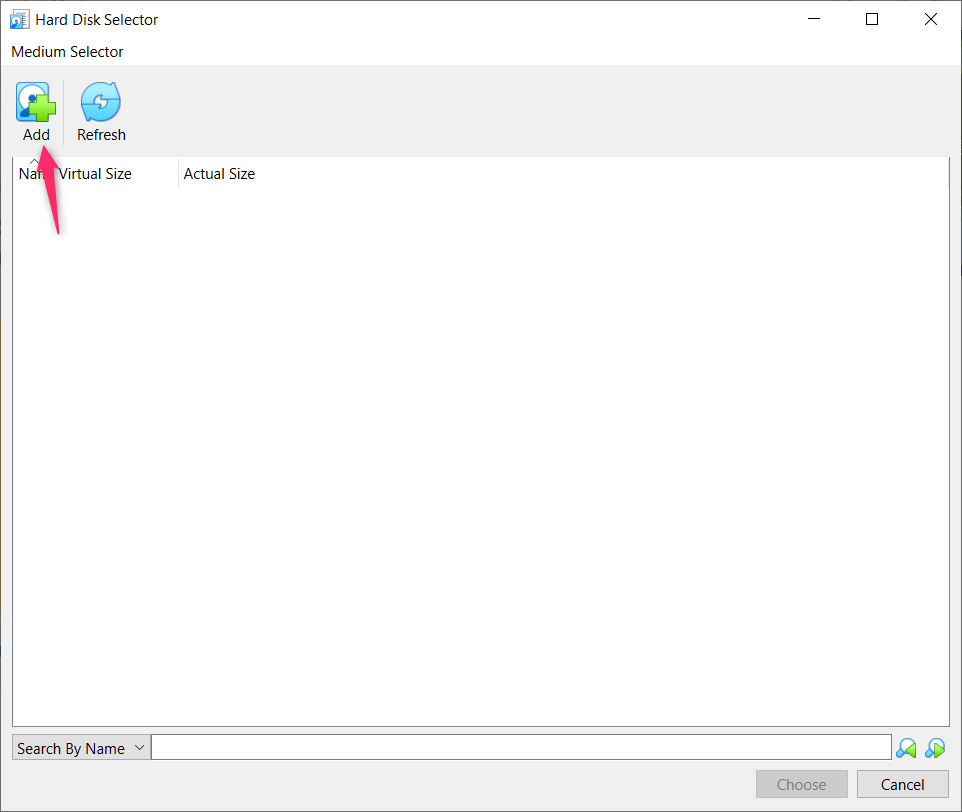
Step 6: Browse for the Enapter VMDK File
- Navigate to the location where you saved the Enapter VMDK file
- Select the Enapter
.vmdkfile. - Click "Open"
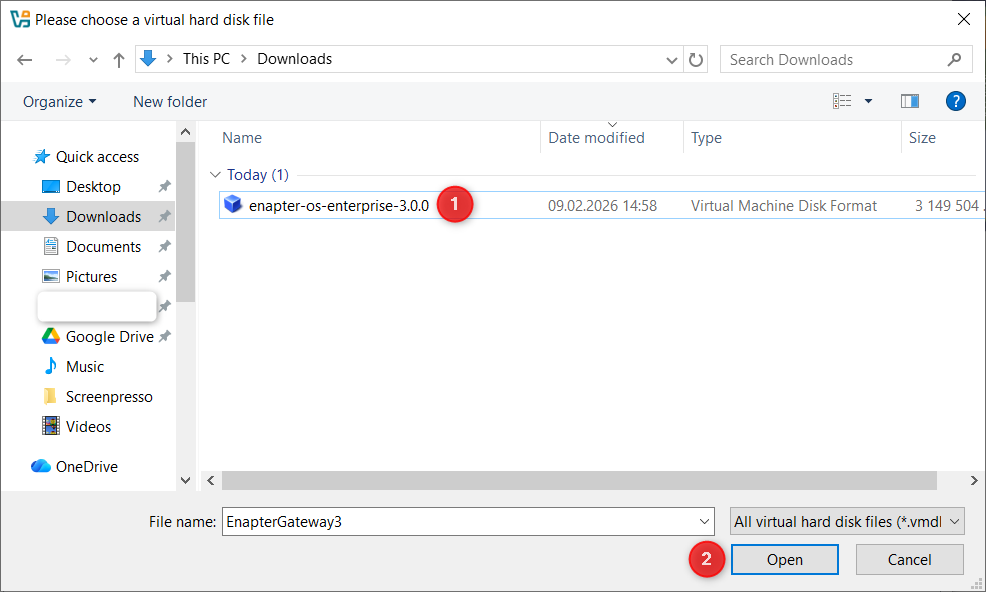
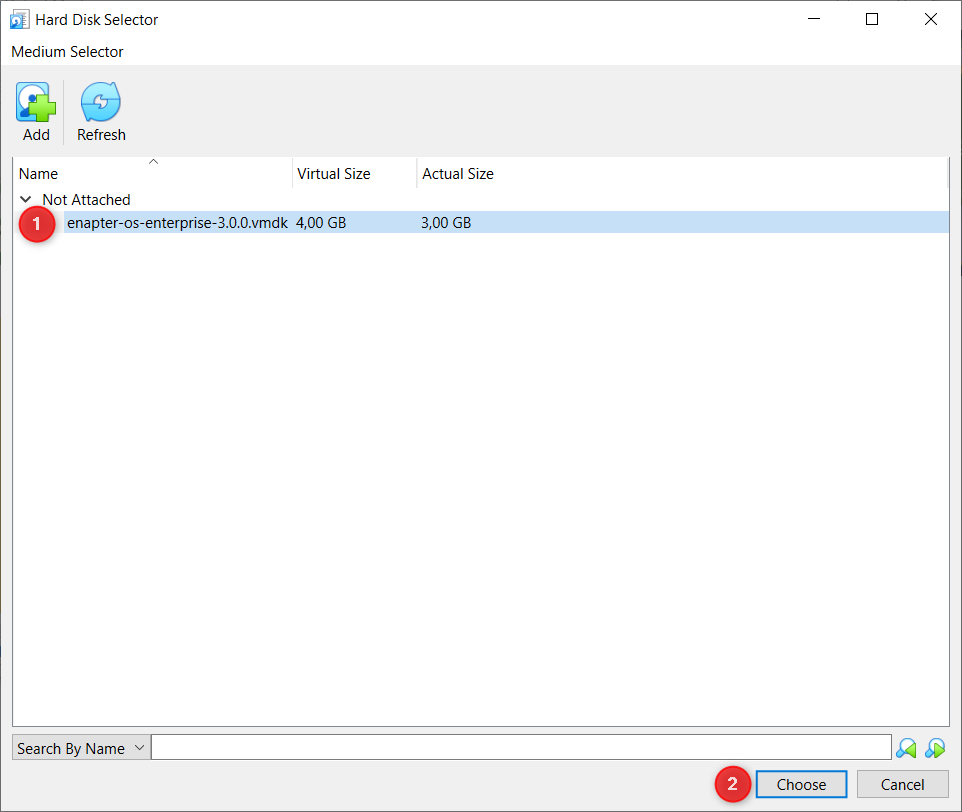
Step 7: Confirm the Hard Disk Selection
- Verify the VMDK file appears in the list showing:
- Name:
enapter-*.vmdk - Virtual Size: 4.00 GB
- Name:
- Select the disk and click "Choose"
Step 8: Complete Initial VM Setup
- Confirm the virtual hard disk is now selected
- Click "Finish" to proceed
Create Additional Hard Disk
Step 1: Access Settings
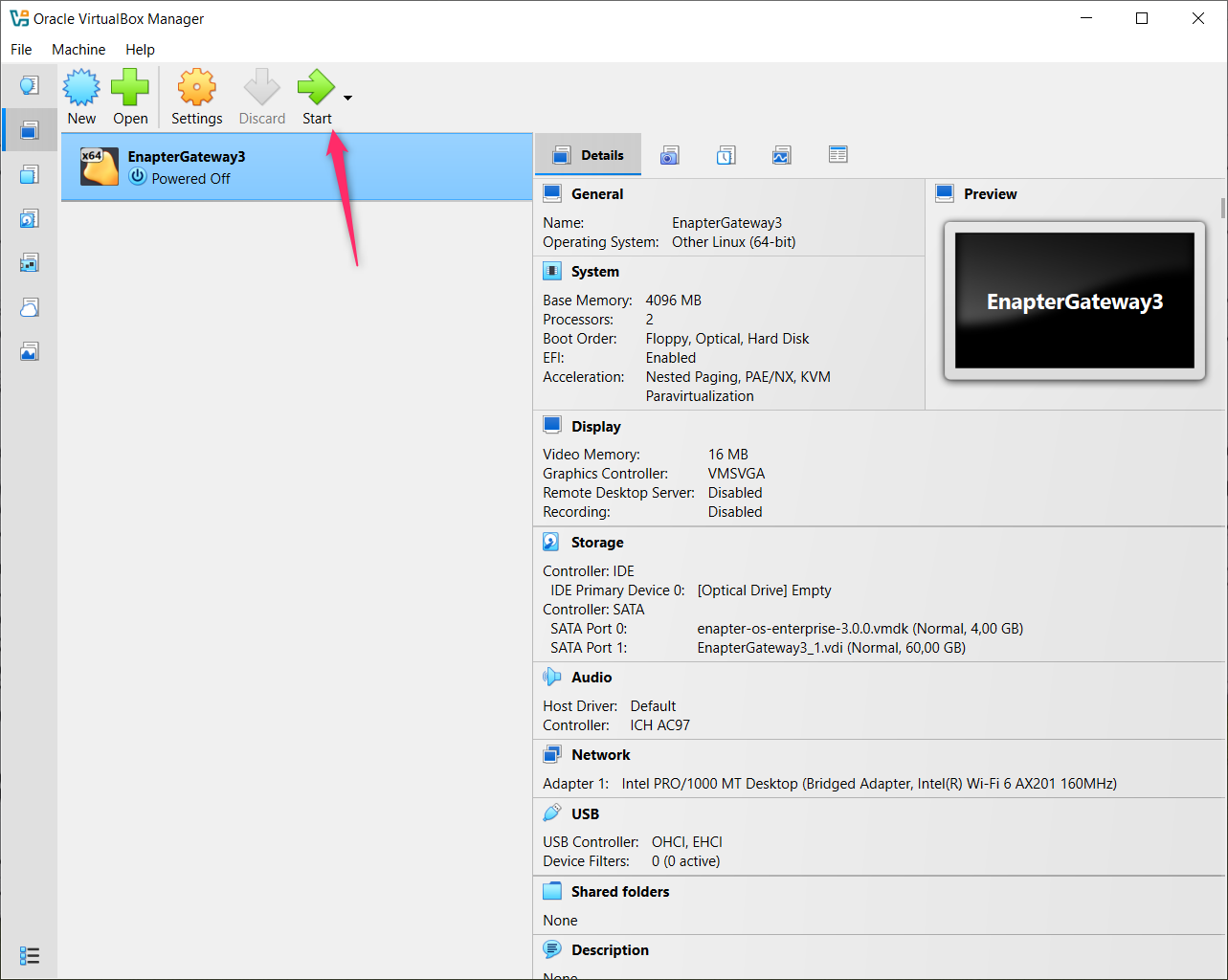
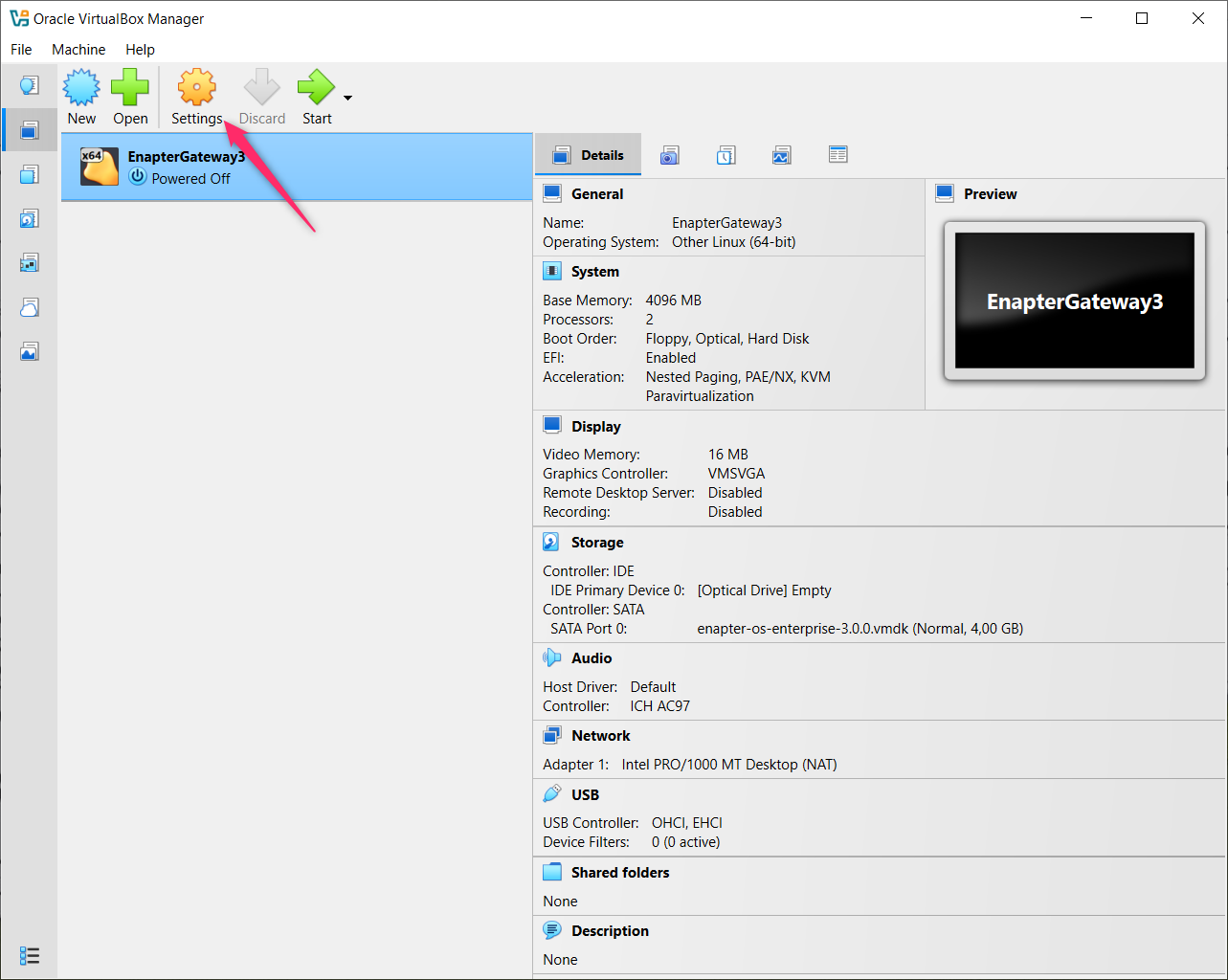
- Your VM is now created and appears in the VirtualBox Manager
- Click on "Settings" to configure additional storage
Step 2: Configure Storage Settings
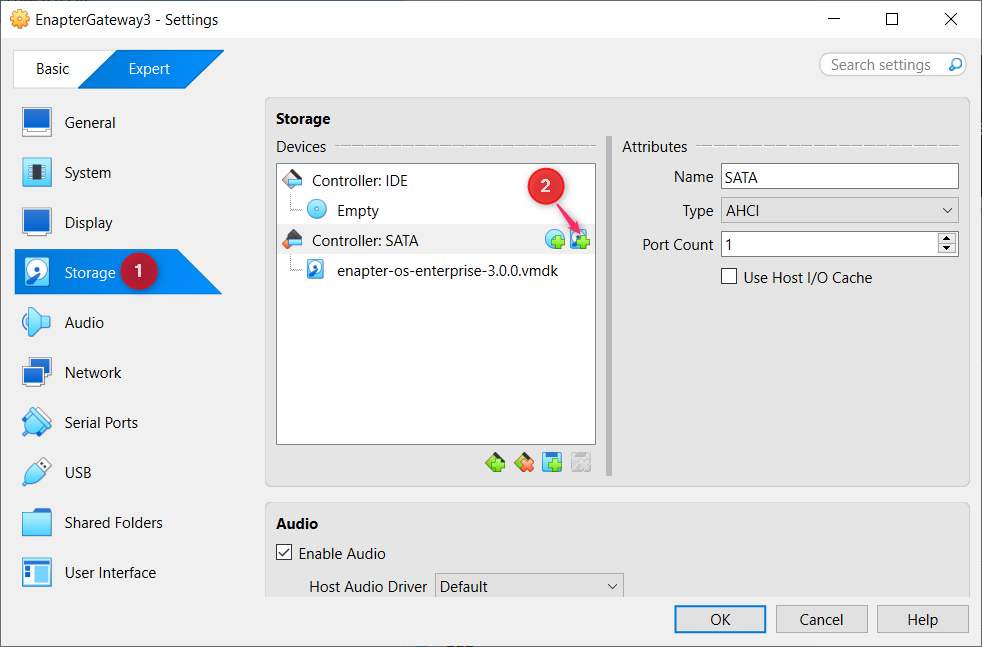
- In the Settings dialog, select "Storage" from the sidebar
- You will see the existing "Controller: SATA" with the Enapter VMDK disk
- Click the "+" icon next to the SATA controller to add a new disk
Step 3: Create Additional Hard Disk
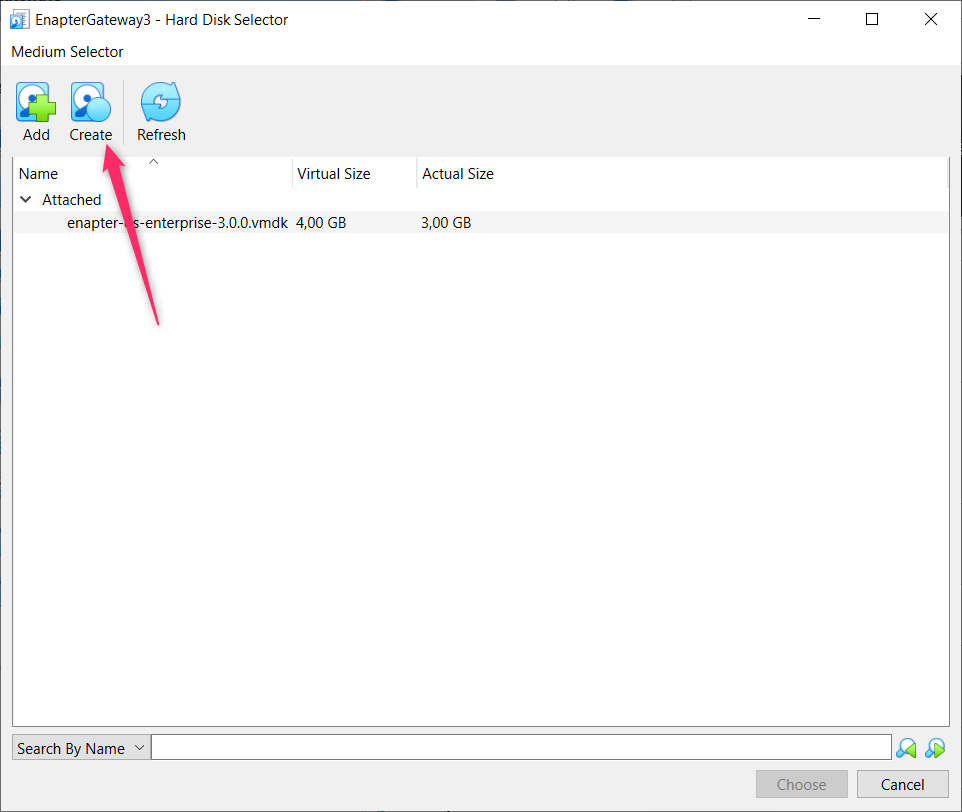
- In the Hard Disk Selector dialog, click "Create" to make a new virtual disk for user data
Step 4: Create Virtual Hard Disk
- CRITICAL: Set the disk size to at least 60 GB minimum
- Drag the slider or enter the value directly
- Choose "VDI (VirtualBox Disk Image)" as the file type
- Choose between dynamically allocated (grows as needed) or fixed size
- The default (dynamically allocated) is recommended
- Name the disk file (or you can keep auto generated name)

Step 5: Confirm the New Disk
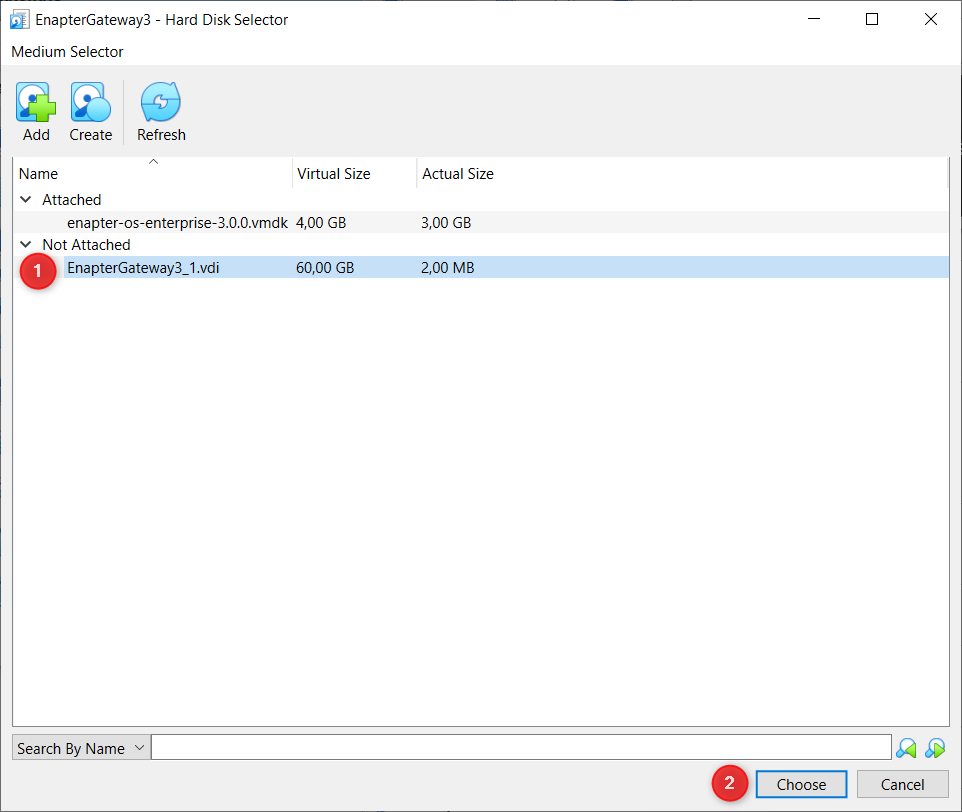
- You should now see both disks in the Hard Disk Selector:
- The original Enapter VMDK (4 GB)
- The new data disk (60 GB)
- The new disk will be selected automatically
- Click "Choose" to add it to your VM
Step 6: Finalize Storage Configuration
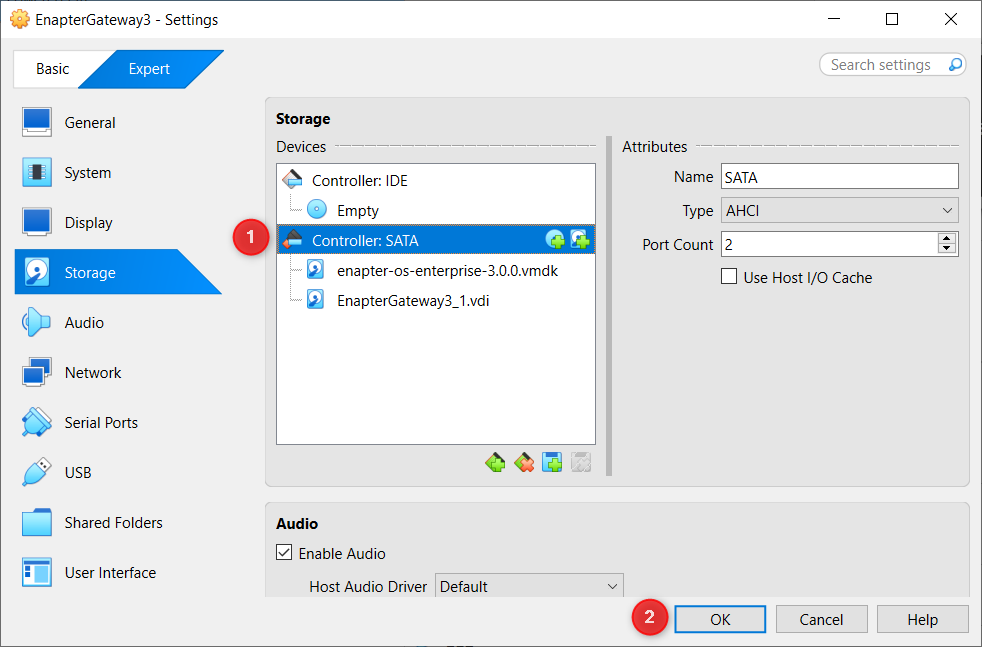
- Verify both disks appear under "Controller: SATA" section
- Click "OK" to save the settings
Make Gateway Available on Your Local Network.
Step 1: Change Network Settings
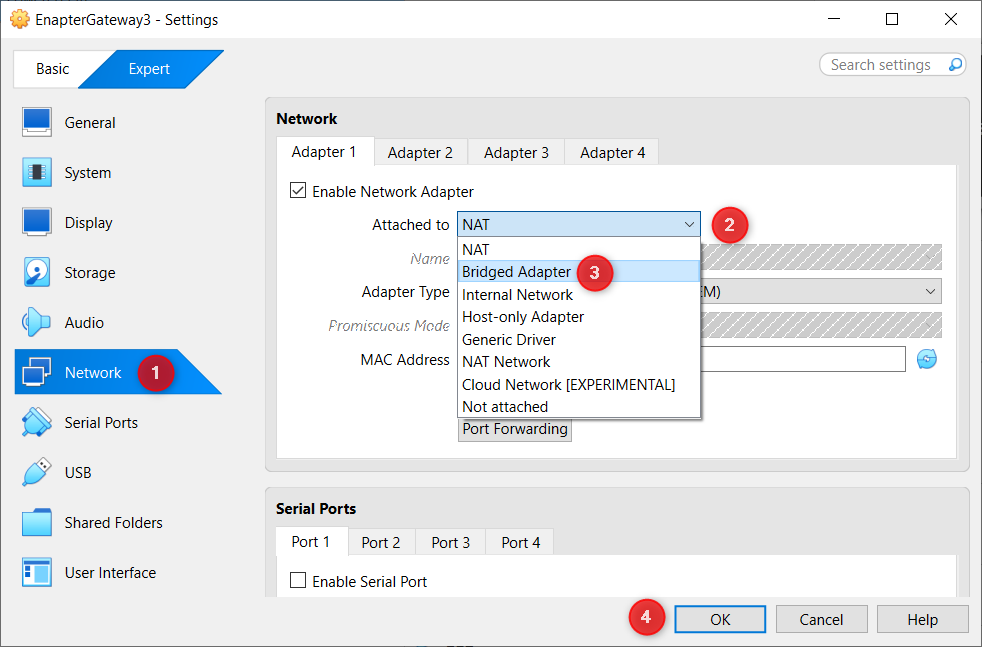
- In the Settings dialog, select "Network" from the sidebar
- Choose "Bridged Adapter"
- Click "OK" to save the settings
Step 2: Get the Enapter Gateway IP address
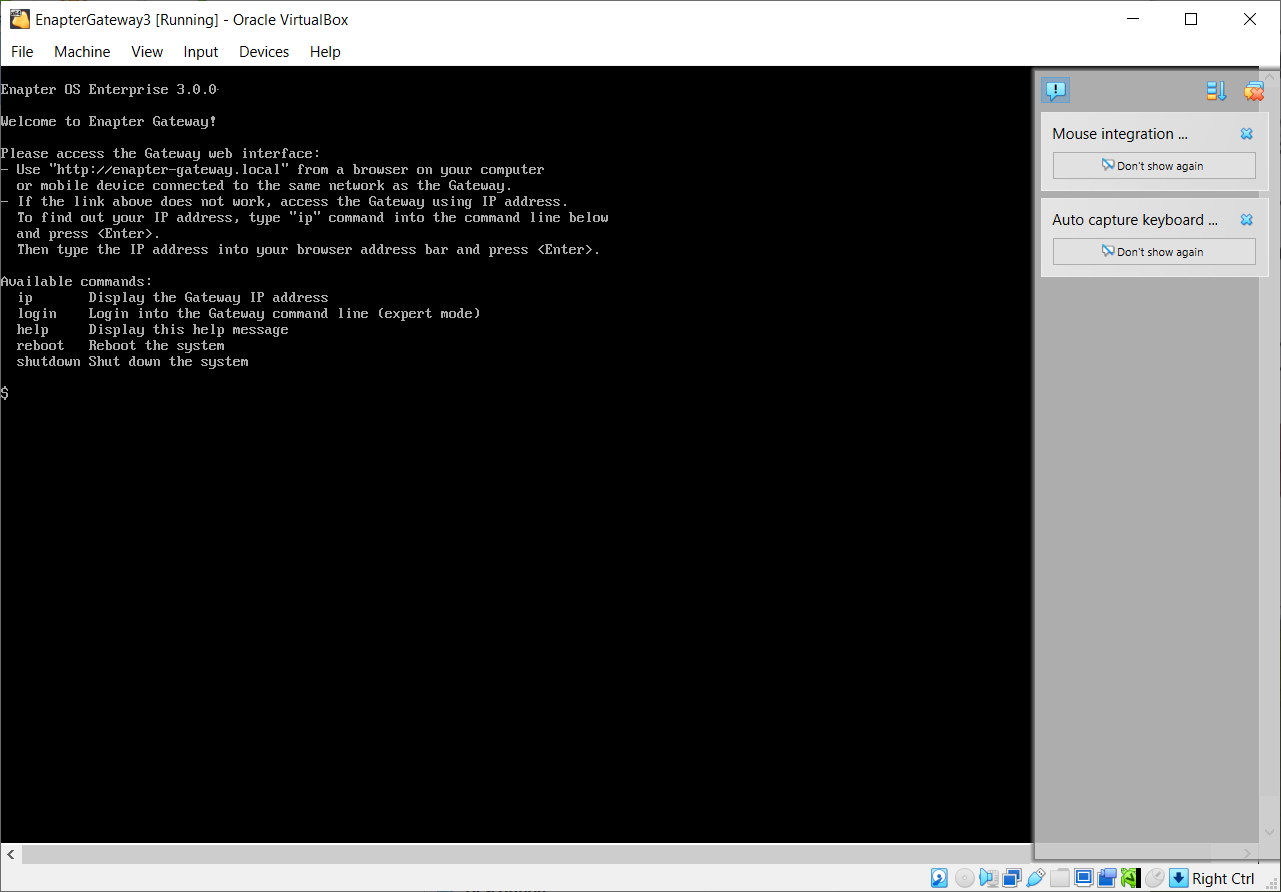
- After starting the Gateway type
ipand pressEnter. - Use the shown IP address to access Gateway Web UI in a web browser.
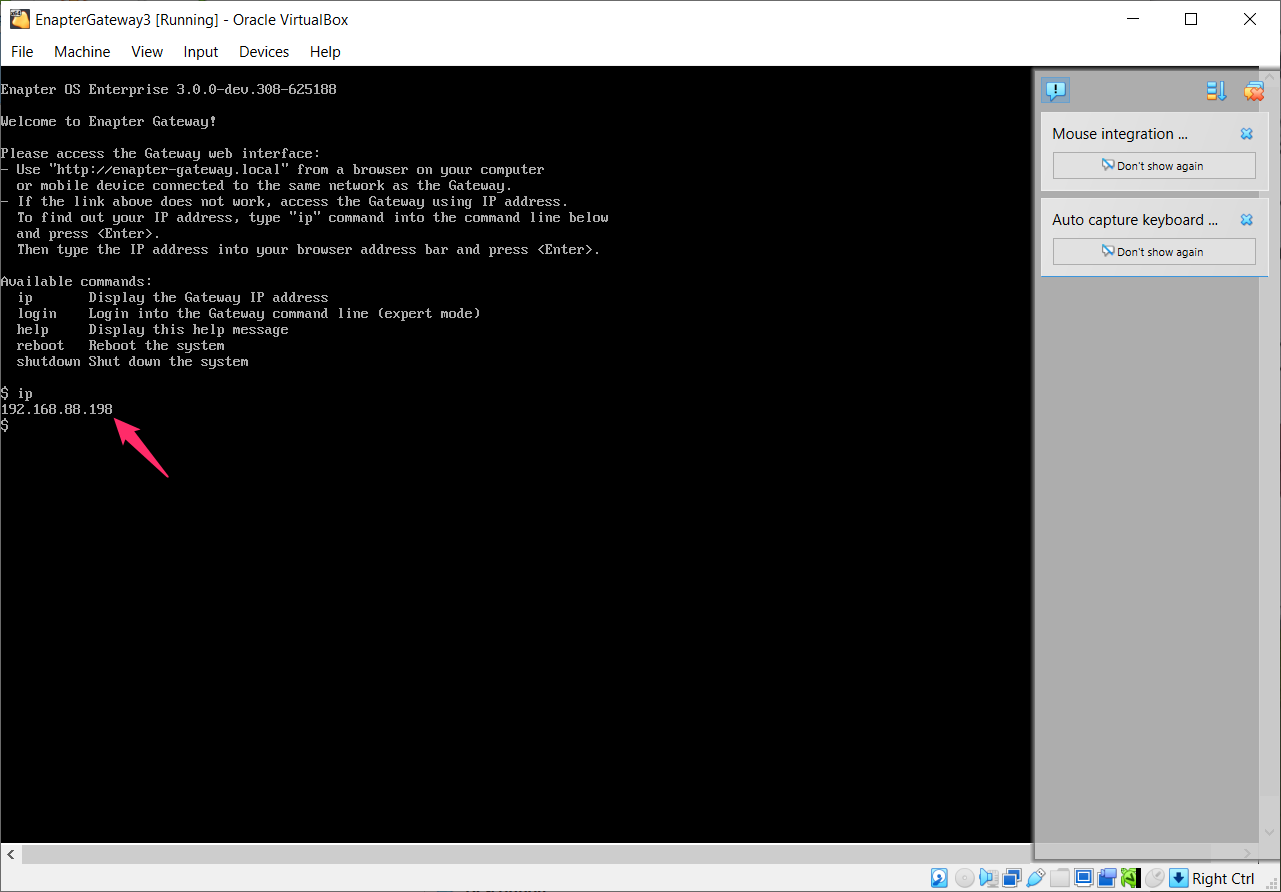
Run Enapter Gateway
Step 1: Start the Enapter Gateway
- Back in the VirtualBox Manager, select your VM and click "Start"
- The VM will boot into the Enapter Gateway software
- You will see the welcome screen with instructions for accessing the Gateway